Follow this guide to diagnose the issue yourself and get your alert detection back online.
In this article:
- What happened?
- Diagnose the issue: check the lights on your server
- Understanding the banner in your app
- The guided recovery flow in the app
- Common causes and what to do
- Rebooting didn't fix it — what now?
- When physical access to the server is required
- Book a support call
1. What happened?
Your Veesion server has lost its connection to our network. This means alert detection is paused — you won't receive new theft alerts until the connection is restored.
Your camera recordings are not affected. Your video recorder (DVR) continues recording independently. Only the AI analysis is paused.
Good news: most incidents resolve on their own. About 70% of Server Down events are caused by brief network interruptions. The server reconnects automatically (median: \~10 hours), and you receive a notification when detection resumes. No action needed in most cases.
If the issue doesn't resolve on its own, the first thing to do is go look at your server and check the indicator lights. This will tell you exactly what's wrong.
2. Diagnose the issue: check the lights on your server
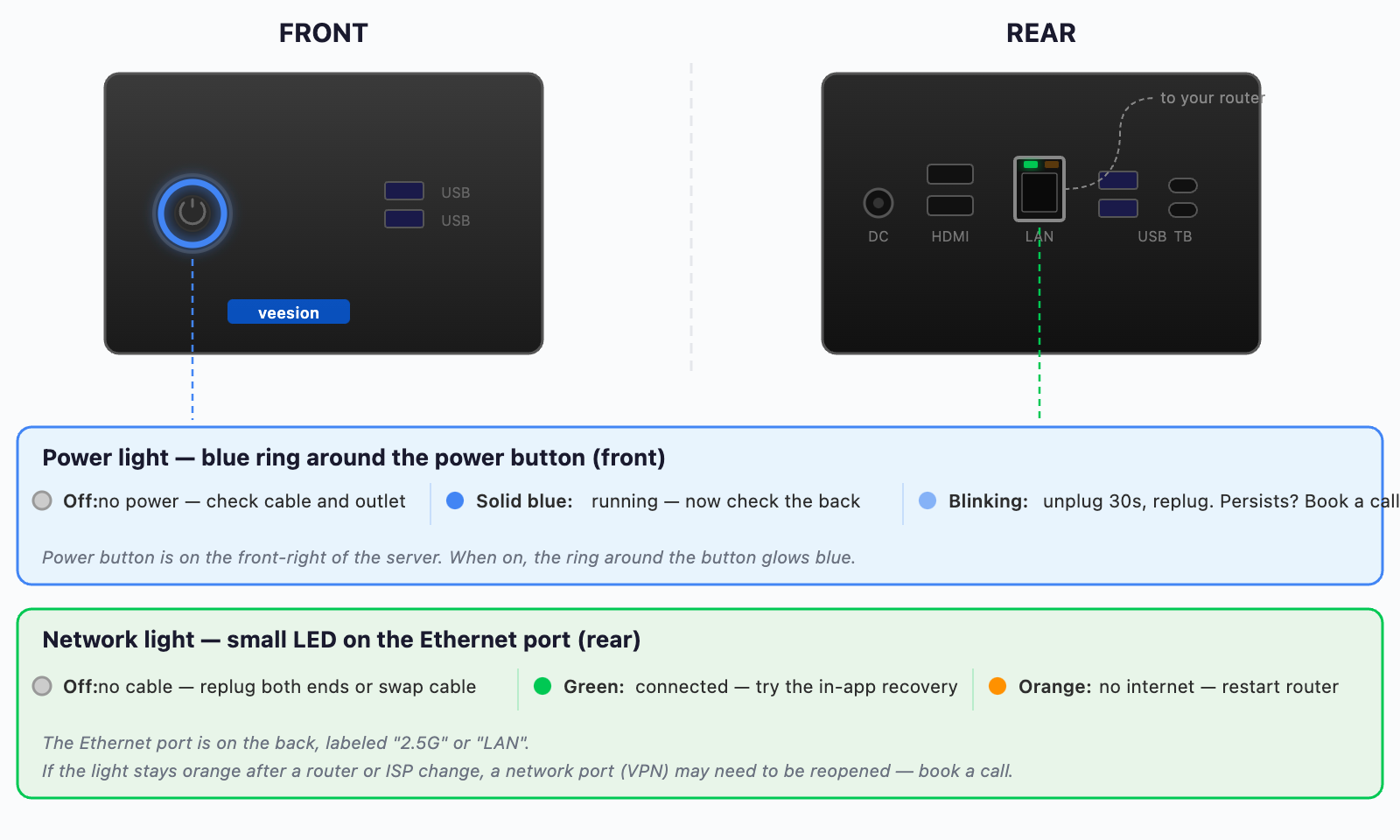
Your Veesion server is a small black box, usually installed near your video recorder or network equipment. It has two indicator lights — one on the front, one on the back. Go to the server and check both sides.
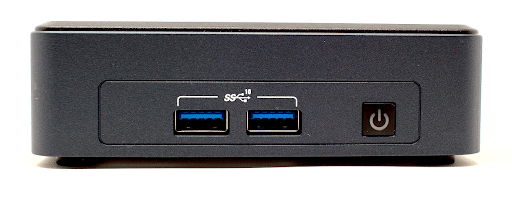
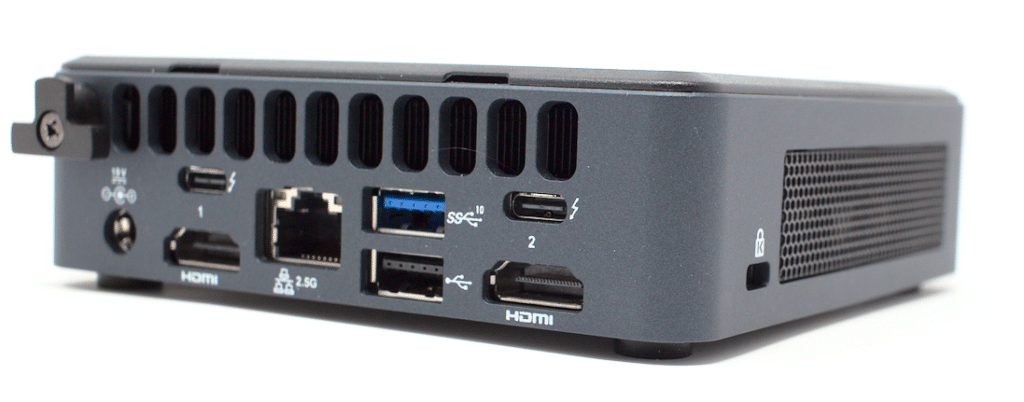
*Photos: Intel NUC 11 Pro Tiger Canyon — the model used in Veesion servers. Credit: **StorageReview.com*
Where is the server? It's a small black box, usually installed near your video recorder (DVR) or your internet router. It may have a "veesion" sticker on it.
⏻ Power light (front — blue ring around the power button):
- ⚫ Off (no light) — the server has no power at all. Check the power cable at the back: is it firmly plugged in? Follow it to the wall outlet or power strip — is the outlet working? Try a different outlet. If the server stays completely dark after trying everything, it may have a hardware failure — book a support call (section 7).
- 🔵 Solid blue — the server is on and running normally. Now go check the back of the server.
- 💡 Blinking blue — the server detected a startup error. Try unplugging the power cable from the back, waiting 30 seconds, and plugging it back in. Still blinking? Book a call with our support team.
🔌 Network light (rear — small LED on the Ethernet port, where the network cable plugs in):
- ⚫ Off (no light) — no network cable detected, or the cable is faulty. This is the most common situation. Check: Is the Ethernet cable firmly plugged in on both ends (you should hear a "click")? Try a different port on your router. Try a different cable if you have a spare one.
- 🟢 Green (solid or blinking) — The server is powered and physically connected to your network. The issue is either a blocked network port (VPN) or a software problem. Try the guided recovery flow in the app (section 4). If the problem started after a network change, the VPN port may have been closed — book a support call (section 7).
- 🟠 Orange / amber — a cable is plugged in but the connection is not fully working. Wait 2–3 minutes (the connection may still be establishing). Restart your router (unplug, wait 30 seconds, replug) and check if other devices have internet.
Detailed step-by-step (same as above, for guided walkthrough):
- ⚫ No light — the server is completely dark: The server is not receiving electricity. Check the power cable at the back: is it firmly plugged in? Follow it to the wall outlet or power strip — is the outlet working? Try a different outlet. If you recently had a power outage, the outlet's circuit breaker may have tripped (check your fuse box). If the server stays completely dark after trying everything, it may have a hardware failure — book a support call (section 7).
- 🔵 Solid blue — the server is on: Good — the server has power and is running. Now go check the back of the server → Step 2.
- 💡 Blinking — the server has a startup error: Try unplugging the power cable from the back, waiting 30 seconds, and plugging it back in. If the blinking continues after the restart, book a support call (section 7) — our team will need to investigate remotely.
Step 2 — Look at the rear: what does the light on the Ethernet port look like?
- ⚫ No light on the Ethernet port: The server has power but the network cable is not detected. This is the most common situation. Check: Is the Ethernet cable firmly plugged in on both ends (you should hear a "click")? Try a different port on your router. Try a different cable if you have a spare one.
- 🟠 Orange / amber light: The cable is plugged in but the internet connection is not fully working. Wait 2–3 minutes (the connection may still be establishing). Restart your router (unplug, wait 30 seconds, replug) and check if other devices have internet. If the problem started after a network change (new router, internet service provider switch), a required network port (VPN) may have been closed — book a support call (section 7).
- 🟢 Green light — the network cable is connected: The server is powered and physically connected to your network. The issue is either a blocked network port (VPN) or a software problem. Try the guided recovery flow in the app (section 4). If the problem started after a network change, the VPN port may have been closed — book a support call (section 7).
After any action (replugging a cable, restarting the router...), wait 3–5 minutes for the server to fully reconnect, then check the app to see if the banner has disappeared.
3. Understanding the banner in your app
When a technical incident is active, a banner appears at the top of your alert feed:
- 🔴 Red — "Alert detection interrupted": Full outage. No alerts are being generated. All cameras are affected. Tap to start recovery.
- 🟠 Orange — "Alert detection partially interrupted": Some cameras are still working but one or more of your camera recorders have an issue. Tap for details.
- ✅ Green — "Alert detection restored": Everything is back to normal.
Tap on the banner to enter the guided recovery flow described in the next section.
4. The guided recovery flow in the app
When you tap the banner, the app walks you through a step-by-step recovery. You will need physical access to the server in your store. The whole process takes about 10 minutes.
Step 1 — Introduction screen: The app explains the incident and shows an estimated time for recovery. If you don't have physical access right now, you can call a colleague directly from this screen.
Step 2 — Locate the server: The app shows you what the server looks like and where it is typically installed (near your video recorder or network equipment).
Step 3 — Unplug and replug the server (\~2 min): A video walkthrough guides you: unplug the power cable, wait 30 seconds, plug it back in. Then check the indicator lights (see section 2).
Step 4 — Automatic verification (2–5 min): The system checks if the server has reconnected and if alert detection is resuming. You can continue using the app while it runs in the background.
✓ Success — back to normal! If the check passes, the banner disappears and alerts resume. You'll receive a notification: "Alert detection restored — The server has successfully reconnected to our network."
If the verification fails, the app shows an "Alert detection still unavailable" screen. You can retry, check your network setup, or book a support call (section 7). Multiple attempts are normal — many successful resolutions happen on the 2nd or 3rd try.
5. Common causes and what to do
🔌 Internet outage in your store: The most common cause. Check if other devices can access the internet. If your ISP is down, the server will reconnect automatically once internet is restored. If the issue is local, restart your router (unplug, wait 30 seconds, replug).
🔄 Router or internet box replacement: If you (or your internet provider) recently replaced your internet box or router, the Veesion server may not reconnect automatically. This is one of the most common causes of prolonged Server Down incidents.
Why it happens: The Veesion server uses a fixed network configuration set during installation. When you get a new router, the network settings (IP range, ports) may change, and the server can no longer reach our systems.
What to check:
- Make sure the Ethernet cable is plugged into the new router (not the old one).
- Check the network light on the back of the server (section 2).
- If the light is orange: the server sees the network but can't connect — the VPN port may be closed on the new router.
- If the light is off: the cable may not be plugged in, or the new router may use a different port.
Important: In some cases, a router change requires physical access to the server with a screen and keyboard to update the network settings. This cannot be done remotely. If our support team tells you this is needed, you'll need to either connect a screen + keyboard yourself, or arrange a visit from your installer. See section 7 for details.
Tell support: When you contact us, mention that you changed your internet box — this helps our team diagnose the issue much faster.
⚡ Power outage or accidental unplugging: After a power cut, the server usually restarts automatically. If it doesn't, unplug and replug the power cable. Check that the power light turns on. If it doesn't turn on at all, try a different outlet.
🔀 Ethernet cable disconnected or damaged: Cleaning, renovation, or moving equipment can loosen or disconnect the Ethernet cable. Check both ends (server side and router side). Make sure you hear a "click" when inserting the connector. If you have a spare cable, try swapping it.
🌐 Network or firewall change: Changes to your store's network configuration — new firewall rules, closed ports, updated security settings — can block the server's connection. The server needs a specific VPN port. If your IT provider made network changes recently and the network light is orange, ask them to check if any ports were closed, or book a support call (section 7).
🖥️ Software issue (both lights on, but no alerts): Sometimes the server is connected and powered on, but the analysis software has stopped after an unexpected power cut. Use the guided recovery flow in the app (section 4) — the reboot restarts all software. If it doesn't fix it, book a support call — our team can restart the software remotely.
🔀 IP address conflict: In rare cases, two devices on your network may be assigned the same IP address, causing intermittent connection drops for the Veesion server. This can happen when the video recorder (DVR) has a feature called "UPnP" enabled, which can interfere with IP assignments.
Symptoms: The server alternates between working and disconnecting — you may receive several Server Down / Server Up notifications in a short period.
What to do: This is a configuration issue that our support team can help diagnose. Book a support call (section 8) and mention that the server keeps going on and off — our team will check for IP conflicts.
6. Rebooting didn't fix it — what now?
If you rebooted the server and the issue persists:
1. Wait 5 minutes. The server needs time to fully restart. The analysis software can take up to 5 minutes to become operational after a reboot.
2. Check the lights again. After 5 minutes, go back to section 2 and look at the lights. The diagnosis may have changed after the reboot.
3. Check your full network chain. Restart your router/switch (unplug, wait 30 seconds, replug, wait 2 minutes). Test other devices — can your phone browse the web on the store's Wi-Fi (not mobile data)? Check all cables from the server to the router and from the router to the wall outlet or fiber box.
4. Try the in-app recovery again. From the incident screen, tap "Retry". Many successful resolutions happen on the 2nd or 3rd attempt.
Incident lasting more than 48 hours? Don't wait longer. Book a support call immediately (section 7). Prolonged outages sometimes require our technical team to intervene remotely on the server's software, or in rare cases, a visit from your installer.
7. When physical access to the server is required
In most cases, our support team can diagnose and resolve issues remotely. However, some situations require someone physically in the store with access to the server:
When physical access is needed:
- After a router/internet box change: The server's network settings may need to be updated manually, which requires connecting a screen and keyboard to the server.
- After a failed startup: Some servers need a manual confirmation (pressing a key) to complete their boot sequence after a power outage or unexpected shutdown.
- Server won't power on at all: If the power light stays off after trying different outlets and cables, the hardware may need to be replaced.
What you'll need:
- A screen (monitor) with an HDMI cable
- A USB keyboard
- Access to the location where the server is installed
Tip: If you don't have a screen and keyboard available in the store, ask a colleague to bring a monitor temporarily. Our support team will guide you step by step during the video call.
If your store is managed by a reseller/installer: Contact them directly for any physical intervention. Your reseller handles server replacements and on-site troubleshooting. Veesion's support team provides technical guidance to the reseller.
8. Book a support call
If the self-diagnosis steps above haven't resolved the issue, book a video call with a Veesion support technician. They will guide you through the troubleshooting live.
Book directly from the app: From the incident screen (after a failed recovery), tap the button to schedule a call with our team. A technician who speaks your language will be assigned to you.
Path: Incident banner → Start recovery → Recovery failed → Book a call
When you book, it helps to note:
- What the power and network lights look like right now
- Whether you already tried rebooting (and how many times)
- Whether anything changed recently in your store (new router, renovation, power outage...)
- Whether other devices in the store have internet access
Can't access the incident screen? Go to Accounts → support@veesion.com in the app.